QR code size guide: the minimum print size for every use case
June 17, 2026 · 8 min read
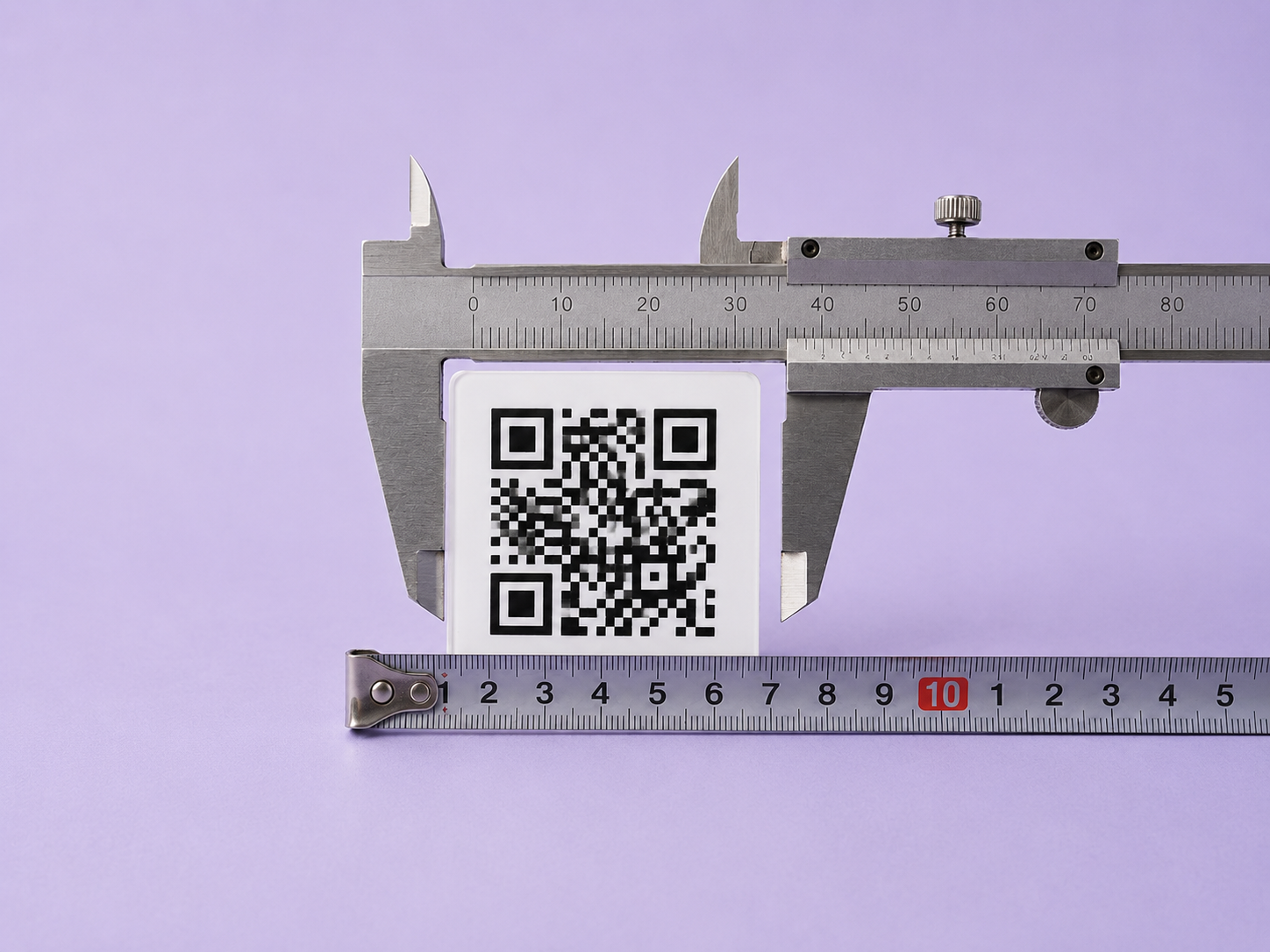
You've designed your QR code. Now you need to know how big to print it. Too small and phones can't read it. Too big and it dominates your design. The right size depends on one thing: how far away the scanner will be.
This guide gives you the minimum size for every common use case, explains the math behind it, and covers the edge cases that trip people up — curved surfaces, low-contrast materials, and logos that eat into your scannable area.
The rule of thumb
A QR code should be at least 1/10th the scanning distance. If someone will scan from 30 cm away (about a foot), the QR needs to be at least 3 cm. If they'll scan from 3 meters away, the QR needs to be at least 30 cm.
This is the ratio that accounts for typical phone camera resolution and autofocus speed. It's conservative — many phones can scan smaller codes — but it ensures reliable scanning across the widest range of devices, including older phones and budget models.
Size chart by use case
Here's the minimum QR code size for the most common print applications. These are minimums — larger is always more reliable.
| Use case | Scan distance | Minimum size | Recommended |
|---|---|---|---|
| Business cards | 15–30 cm | 2 cm | 2–2.5 cm |
| Wedding invitations | 15–30 cm | 2 cm | 2.5–3 cm |
| Menus & table tents | 20–45 cm | 2.5 cm | 3–4 cm |
| Flyers & brochures | 20–40 cm | 2.5 cm | 3–4 cm |
| Product packaging | 15–40 cm | 2 cm | 2.5–3 cm |
| Event badges & tickets | 15–30 cm | 2 cm | 2–2.5 cm |
| Posters & room signs | 1–3 m | 8 cm | 10–12 cm |
| Trade show banners | 2–4 m | 12 cm | 15–20 cm |
| Real estate yard signs | 1.5–5 m | 10 cm | 12–15 cm |
| Window decals & storefronts | 1–2 m | 8 cm | 10–15 cm |
| Vehicle wraps | 2–5 m | 15 cm | 20–25 cm |
| Billboards | 10–30 m | 1 m+ | 1.5 m+ |
A note on billboards: QR codes on billboards are contentious. At highway speeds, no one can safely scan a QR code. Billboards only work as QR placements in pedestrian contexts — bus stops, transit platforms, and urban walls where people are standing still within a few meters.
Why these numbers matter
A QR code is a grid of black and white squares called "modules." A typical QR code encoding a URL has around 25–35 modules per side. For a phone camera to distinguish individual modules, each module needs to be at least 2–3 pixels wide on the camera sensor at the given distance.
When you print too small, the camera can't resolve individual modules. The QR looks like a blurry blob through the lens, and the decoding algorithm can't find the alignment patterns it needs to read the data. The phone just sees a square and does nothing.
Error correction helps with damaged or partially obscured codes, but it can't compensate for insufficient resolution. If the code is too small for the distance, no amount of error correction fixes it.
Factors that require going bigger
The chart above assumes ideal conditions: flat surface, high contrast (dark dots on white), good lighting, and no obstructions. Several real-world conditions require you to increase the size beyond the minimum.
Low contrast
If your QR code uses colored dots on a colored background (brand colors, design integration), the effective contrast is lower than black-on-white. Lower contrast means the camera needs more pixels per module to distinguish dots from background. Increase the size by 20–30% when using colored QR codes.
Curved surfaces
Bottles, cans, tubes, and other curved packaging bend the QR code, reducing the flat scanning area the camera can see at any given angle. Print at least 30% larger on curved surfaces. On tight curves (small bottles), go 50% larger.
Logos in the center
A logo or image in the center of your QR code covers some of the data modules. Scanworthy automatically increases error correction to compensate, but the effective data area is still smaller. If your QR has a center logo, increase the overall size by 15–20% compared to a logo-free code at the same scanning distance.
Glossy or reflective surfaces
Glossy lamination, metallic ink, or reflective materials can cause glare that obscures parts of the QR code under certain lighting angles. Larger codes are more tolerant of partial glare because the camera can still read the unaffected portion. Increase by 20% on glossy surfaces, and test under the actual lighting conditions.
Outdoor conditions
Sun, rain, and temperature changes degrade print quality over time. UV exposure fades ink, reducing contrast. Rain can warp paper or cloud plastic covers. For outdoor signage, start 30% above the indoor minimum and use UV-resistant inks and weatherproof substrates.
File format matters for print size
The file format you download determines how cleanly the QR scales to your target print size.
- SVG and PDF are vector formats. They scale to any size without losing sharpness. Always use vector for print if your workflow supports it.
- PNG is a raster format with fixed pixel dimensions. Scanworthy generates PNGs at 1000x1000 pixels, which prints cleanly at up to about 8 cm (3 inches) at 300 DPI. If you need to print larger than that, use SVG or PDF to avoid blurriness.
A blurry QR code — one where the edges between modules are soft rather than sharp — is harder for cameras to decode. Always match your file format to your print size. Vector for large format; high-res PNG for small format.
The quiet zone
The "quiet zone" is the blank space around the QR code. It's not decoration — it's functional. The scanner uses this blank border to identify where the QR code starts and the surrounding design stops.
The QR specification requires a quiet zone of at least 4 modules on all sides. In practice, this means leaving about 10–15% of the total QR width as blank space around the edges.
The most common print mistake is cropping the quiet zone to fit the QR into a tight space. Don't do this. A QR code with a clipped quiet zone will fail for some percentage of phones, especially older models and budget devices. If you don't have enough space for the QR plus its quiet zone, the QR is too big for that space — shrink it or find more room.
Testing protocol
Before committing to any print run, test the QR code at its actual size, on the actual material, at the actual scanning distance:
- Print a single test copy at full size on the actual stock (paper type, label material, or signage substrate).
- Scan with at least two phones — one iPhone, one Android. Ideally include a phone that's 3+ years old, since older cameras have lower resolution.
- Scan at the intended distance. Hold the phone where a real person would hold it. Don't lean in closer than your audience will.
- Test under realistic lighting. If the sign will be outdoors, test in direct sunlight. If the menu will be in a dimly lit restaurant, test in dim lighting.
- Test the destination. Make sure the URL loads quickly on mobile. A QR code that scans perfectly but loads a slow, unresponsive page is almost as bad as one that doesn't scan at all.
A $1 test print can save you from a $5,000 reprint. This is the single most important step in the entire QR printing process.
What to do if your QR code is too small
If you've already printed and the QR is too small to scan reliably, your options depend on what type of QR code you created:
- Static QR: You'll need to reprint. Generate a new code at the correct size and reprint the affected materials. Since static QR codes are free, the cost is only the printing.
- Smart QR: You'll still need to reprint the physical material at a larger size, but you can reuse the same Smart QR code — just print the same image larger. The redirect and tracking continue working.
For future prints, use the size chart above, add the appropriate buffer for your conditions, and always test before committing.
Design your QR code at the right size
Scanworthy generates QR codes as PNG (1000x1000px), SVG, and PDF. For print use cases where size matters, download SVG or PDF for lossless scaling. The designer preview shows your QR at screen size, but the downloaded file scales to any print dimension.
Design your QR code — Free, no signup
For more on print-specific QR code considerations, see our QR code generator for print page.